



 Full Games List
 Featured Games
 New Games
 Reviews
 Media
Media Images
 Blogs
Blogs Game Updates
 Images Feedback Summary
 Game Design Highlights
 Tutorials
 Articles
 Scripts
 Utilities / Plugins
 Resources
 Engines
 Engine Bulletins
 What is Makerscore?
 Past Events
 Achievements
 Misaos
 Forums
 Post History
 Chat
Chat New to RMN?
 Full Store List
 RMN Music Pack (free)



HELP HOW DO I EXPORT AND IMPORT COLOR PALETTES IN GRAPHICSGALES FOR A SPRITE FOR SRPG95
Posts

 artix5455
 View playlists
 Close
CloseHELP< how do i export and import color palettes in graphicsgale for these sprites






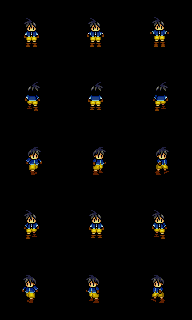
THESE ARE THE SPRITES THAT IM TRYING TO GET THE SAME COLOR PALATE AND SAME TYPE PICTURE AS THIS

BTW THESE ARE ALL IN PNG BUT THEY MUST BE BMP FOR GAME, IF SOMEONE COULD TELL ME HOW TO DO IT, THEN THANK YOU, BUT IF SOMEONE CAN DO IT I WOULD BE VERY HAPPY, THANKS
THESE ARE THE SPRITES THAT IM TRYING TO GET THE SAME COLOR PALATE AND SAME TYPE PICTURE AS THIS
BTW THESE ARE ALL IN PNG BUT THEY MUST BE BMP FOR GAME, IF SOMEONE COULD TELL ME HOW TO DO IT, THEN THANK YOU, BUT IF SOMEONE CAN DO IT I WOULD BE VERY HAPPY, THANKS

Do NOT double post. I've already told you this in the previous topic you made about this.
To change them to BMP (who would ever want to?) open them in an image editor and use the save-as function to do so. Also, it may be that 95 won't allow for the size difference you want. Each engine has different sized sprites allowed. For instance, 2k/3 only allow up to 24x32 sized sprites to be used. I'm unsure of what size 95 allows though.
As for colours... are you trying to get the palette itself or the colour restrictions? If the colour restrictions you can easily to that in a good image editor like gimp or graphics gale. Just choose how many colours to add/remove from one of the menus (I'm unfamiliar with both since I use PSP, but the principal is the same so just find a tutorial online for it. Both GG and Gimp are free to use, and you can also use Paint.net. Do not use Paint. It doesn't work well and distorts images.)
To change them to BMP (who would ever want to?) open them in an image editor and use the save-as function to do so. Also, it may be that 95 won't allow for the size difference you want. Each engine has different sized sprites allowed. For instance, 2k/3 only allow up to 24x32 sized sprites to be used. I'm unsure of what size 95 allows though.
As for colours... are you trying to get the palette itself or the colour restrictions? If the colour restrictions you can easily to that in a good image editor like gimp or graphics gale. Just choose how many colours to add/remove from one of the menus (I'm unfamiliar with both since I use PSP, but the principal is the same so just find a tutorial online for it. Both GG and Gimp are free to use, and you can also use Paint.net. Do not use Paint. It doesn't work well and distorts images.)
author=Liberty
Do NOT double post. I've already told you this in the previous topic you made about this.To change them to BMP (who would ever want to?) open them in an image editor and use the save-as function to do so. Also, it may be that 95 won't allow for the size difference you want. Each engine has different sized sprites allowed. For instance, 2k/3 only allow up to 24x32 sized sprites to be used. I'm unsure of what size 95 allows though.
As for colours... are you trying to get the palette itself or the colour restrictions? If the colour restrictions you can easily to that in a good image editor like gimp or graphics gale. Just choose how many colours to add/remove from one of the menus (I'm unfamiliar with both since I use PSP, but the principal is the same so just find a tutorial online for it. Both GG and Gimp are free to use, and you can also use Paint.net. Do not use Paint. It doesn't work well and distorts images.)
author=Liberty
Do NOT double post. I've already told you this in the previous topic you made about this.To change them to BMP (who would ever want to?) open them in an image editor and use the save-as function to do so. Also, it may be that 95 won't allow for the size difference you want. Each engine has different sized sprites allowed. For instance, 2k/3 only allow up to 24x32 sized sprites to be used. I'm unsure of what size 95 allows though.
As for colours... are you trying to get the palette itself or the colour restrictions? If the colour restrictions you can easily to that in a good image editor like gimp or graphics gale. Just choose how many colours to add/remove from one of the menus (I'm unfamiliar with both since I use PSP, but the principal is the same so just find a tutorial online for it. Both GG and Gimp are free to use, and you can also use Paint.net. Do not use Paint. It doesn't work well and distorts images.)
I'm trying to change the color palate to 256 and make it THE SAME as that last picture I showed but how please help
Why would you want to make it the same. 256 has a very limited amount of colours. Changing the palette will change the colours of the sprite itself if it doesn't originally use the colours that are in that palette.
In any case, there should be an option in one of the menu areas to import a palette. Take a look. Hell, do a google search for "Graphics Gale importing palette" and "Graphics Gale reducing colour range". There should be some tutorials about them out there.
And I'd do it fast if you still want answers here because using double accounts is a bannable offence and you have done such, so your time here is quite limited.
In any case, there should be an option in one of the menu areas to import a palette. Take a look. Hell, do a google search for "Graphics Gale importing palette" and "Graphics Gale reducing colour range". There should be some tutorials about them out there.
And I'd do it fast if you still want answers here because using double accounts is a bannable offence and you have done such, so your time here is quite limited.

You started the topic under the username 5455. To completely spell it out:
Look at the number next to the username of your initial post:

And compare to your next post:

If you really are having some sort of weird never-before-seen account glitch, hopefully someone can fix it for you. But your constant double-posting, your ALL CAPS WITH CONSTANT MISSPELLINGS way of typing, and your making several attention-seeking posts in the Whelp forum makes it seem like you're probably trolling to me :/
Look at the number next to the username of your initial post:
And compare to your next post:
If you really are having some sort of weird never-before-seen account glitch, hopefully someone can fix it for you. But your constant double-posting, your ALL CAPS WITH CONSTANT MISSPELLINGS way of typing, and your making several attention-seeking posts in the Whelp forum makes it seem like you're probably trolling to me :/
I'm not trolling I'm actuly just need help, and I use this on phone and computer, hm....... I must have a different account on computer but I DONT REMEMBER MAKING IT, IM SERIOUS


I haven't used srpg95 in a while but i believe there is a work around where you have to delete All the imported charasets and import new ones using the same pallete so your colors aren't funky (backup your project first)

1) Download Graphicsgale.
2) Open the system.bmp you're using in your game.
3) Go to the palette window that has all the colors the image has available to it. If it isn't visible open it under View->Palette
4) In the palette window there's an arrow facing down and a line below the colors on the left hand side. Click it to open the palette menu. Click 'Save Palette' and save your palette to a file somewhere.
5) Open the graphic that needs the new palette in graphicsgale.
6) In the same palette window open the palette menu and click on 'Load Palette'. Click on 'File' and select 'Import from File'. Find and select your saved palette file from Step #4.
7) Two color palette will appear. The one on the left is the source palette (form step #4) and the one on the right is your target palette (the graphic your editing). Make sure 'Match pixels with colors' is checked, it's on the left side. Then click on 'All' on the right side. Then click OK.
8) Save your new file with the corrected palette.
9) Repeat #5-8 on all graphic files that need their colors fixed.
This isn't guaranteed to fix it since the colors that a graphic use may not be present at all in the source palette and can't be matched to the new palette. If this happens you'll have to find the missing colors and add it to the palette and then apply the new palette to all files. I can't go in detail about this, I've never done it.
Also don't turn on caps lock or type in all capitals again. tia
2) Open the system.bmp you're using in your game.
3) Go to the palette window that has all the colors the image has available to it. If it isn't visible open it under View->Palette
4) In the palette window there's an arrow facing down and a line below the colors on the left hand side. Click it to open the palette menu. Click 'Save Palette' and save your palette to a file somewhere.
5) Open the graphic that needs the new palette in graphicsgale.
6) In the same palette window open the palette menu and click on 'Load Palette'. Click on 'File' and select 'Import from File'. Find and select your saved palette file from Step #4.
7) Two color palette will appear. The one on the left is the source palette (form step #4) and the one on the right is your target palette (the graphic your editing). Make sure 'Match pixels with colors' is checked, it's on the left side. Then click on 'All' on the right side. Then click OK.
8) Save your new file with the corrected palette.
9) Repeat #5-8 on all graphic files that need their colors fixed.
This isn't guaranteed to fix it since the colors that a graphic use may not be present at all in the source palette and can't be matched to the new palette. If this happens you'll have to find the missing colors and add it to the palette and then apply the new palette to all files. I can't go in detail about this, I've never done it.
Also don't turn on caps lock or type in all capitals again. tia

